Collect Text
Discover the potential of the “Collect Text” card in Mark360 — designed to make your bot interactions more dynamic and personalized. Engage users with open-ended questions and capture their responses directly into a variable for seamless use throughout your BotFlow.
What is Collect Text?
The Collect Text card enables your bot to ask open-ended questions that invite users to type in detailed answers — not just simple clicks or choices.
Use this to gather feedback, collect information, or understand user preferences.
The user’s response is stored automatically in a defined variable, allowing you to reuse it later within your automation.
✨ Tip: Use the Collect Text card to make your conversations smarter, more interactive, and tailored to each user’s input.
Collect as Text Essentials
Get started with the basics of the “Collect as Text” option in the Collect Text card on Mark360 to create more engaging and natural conversations with your users.
Question Text
This is the prompt or question you want your bot to ask users.
Keep it clear, concise, and easy to understand so users know exactly what information to provide.
💡 Pro Tip: A well-crafted question helps gather accurate responses and improves the overall user experience in your Mark360 bot flow.
Implementation Example
Let’s look at how to use the Collect Text card in Mark360 with validation settings to collect user data accurately.
Example Scenario
Imagine you want to ask your customers for their PAN Card details to evaluate their financial profile.
By using the Collect Text question type with validation settings, you can ensure that users enter valid responses within a defined format.
Question Text
Enter this as your question:
Enter your PAN Card details to evaluate your profile.

Storing User Response
You can store the user’s reply in a variable for later use.
For example, create a variable named user_details to store the PAN number entered by the user.

Additional Validation Settings
- Attempt Limit:
1 - Validation Error Message: (optional)
- Action on Invalid Response: Choose what the bot should do if the user enters invalid data (e.g., Skip Question or End Conversation ).
Regex for PAN Card Validation
To make sure the entered PAN number follows the correct structure, you can use this regular expression: ^[A-Z]5[0-9]4[A-Z]1$
Validation Criteria
-
The PAN number must be 10 characters long.
-
The first five characters must be uppercase letters.
-
The next four characters must be digits (0–9).
-
The last character must be an uppercase letter.
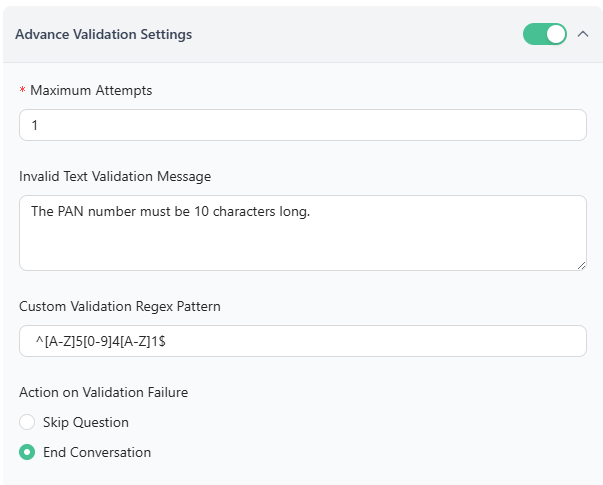
In Mark360 Bot Interface:
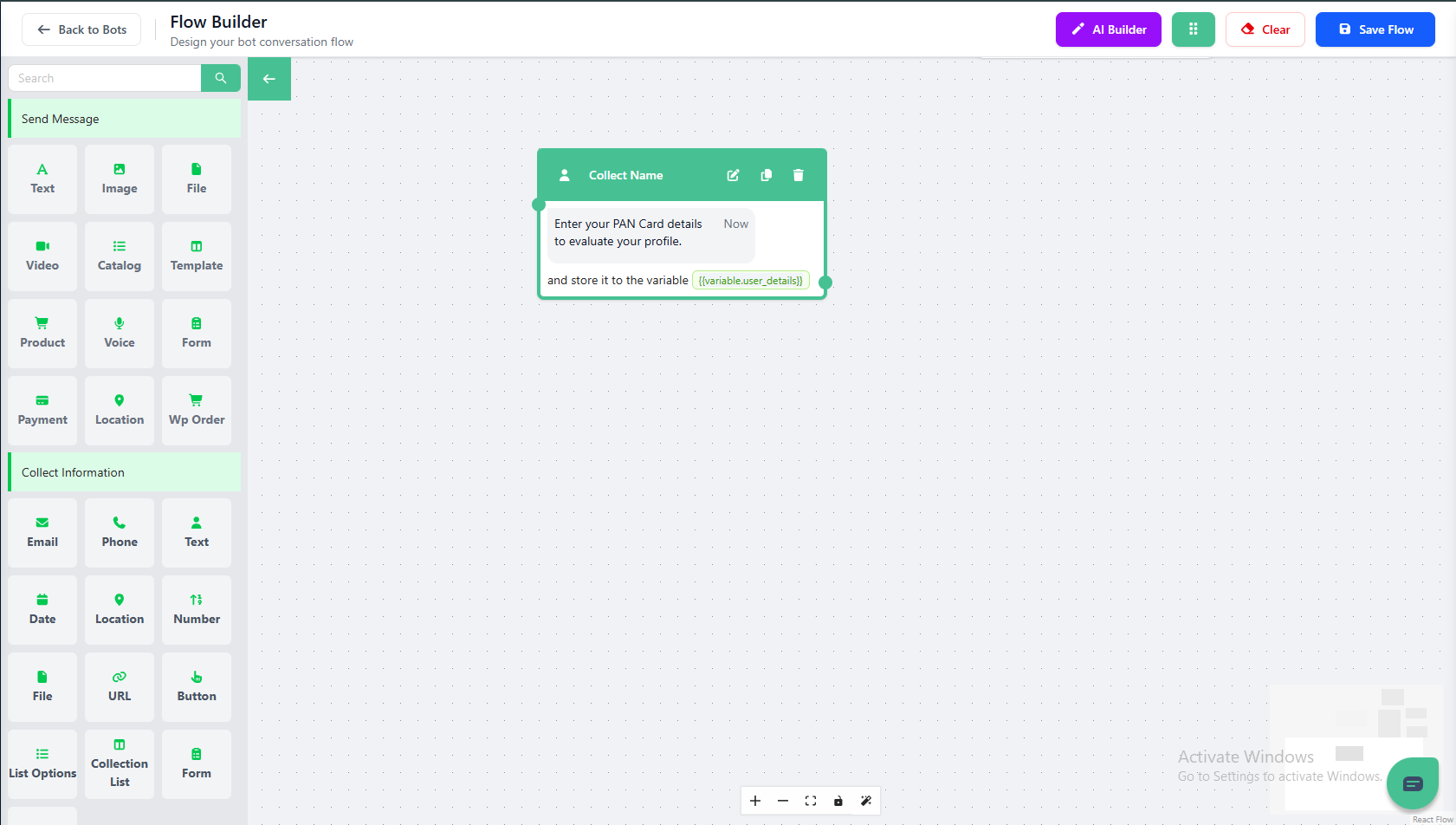
✅ Tip: Using regex validation ensures data accuracy and prevents users from entering incorrect or incomplete information in your Mark360 bot flow.